Open topic with navigation
Agent Performance Dashboard
The IT Contact Analytics
Agent Performance Dashboard enables you to rank agents based on a performance
of specific measures, breakdown agent performance across key attributes,
and identify potential areas of improvement for the agents.You
can view the agent ranking on a Weekly or Monthly basis.
To understand the metrics used in this dashboard, see the Metrics
Used section.
In the Agent Performance dashboard
perform the below tasks to view the required data:
-
Select a time frame (Weekly
or Monthly) for which you
want to view and analyze the chosen agent's performance.
-
From the Select Skill
hierarchy, from the Skill Level
drop-down list, select the skill group for which you wish to rank
your agents.
Note: The Skill Levels provide you the skill groups in a hierarchical manner. You can start selecting from the highest Skill Level to the lowest Skill Level. The highest Skill Level is the parent skill and rest of the Levels are the children skills.
For Example, start selecting from the and go on selecting the Skill Levels in an descending order till the Skill Level 0. However, you do not have any constraints from selecting directly from the Skill
Level 0 as well without selecting a value from the parent Skill Level. But when a parent skill value changes, the corresponding children skill values are reset
to All.
-
From the Select Group
drop-down list, choose an attribute on the basis of which you want
to view the agents' ranking.
-
From the Rank By drop-down
list, choose a metric for which you want to analyze the selected agent's
performance over a period of time.
According to the above selections, you view the details in the Agent Ranking and Agent
Performance sections.
Note: If you do not select any attribute from the Select Group drop-down list, by default, All Group is selected and the corresponding details would be displayed for all the available groups.
-
Agent Ranking
-
Agent Performance
Legends:
-
A downward arrow, if in green ( ), symbolizes
a positive impact in the fall in the metric.
), symbolizes
a positive impact in the fall in the metric.
-
A downward arrow, if in red ( ), symbolizes
a negative impact in the fall in the metric.
), symbolizes
a negative impact in the fall in the metric.
-
An upward arrow, if in green ( ), symbolizes
positive impact in the growth of the metric.
), symbolizes
positive impact in the growth of the metric.
-
An upward arrow, if in red ( ), symbolizes
negative impact in the growth of the metric.
), symbolizes
negative impact in the growth of the metric.
Agent Performance Functionality and Drill to ServiceNow using FCR Metric
You can view a specific Agent’s performance with regard to FCR through their FCR metric and you can further drill down to view the incident and call details in ServiceNow.
Perform the following to view the agent’s performance using FCR metric:
1. In the Agent Performance dashboard, select a required Agent Group from the Select Group drop-down list. The corresponding agents for the selected Group will be displayed on the left-hand side navigation as a bar graph.
2. Select a required agent from the bar graph and select the FCR metric from the Rank By drop-down list. The dashboard is refreshed with the selected agent’s performance based on the FCR metric.
3. Hover your cursor and click on any of the available trends for the selected Agent in the following screenshot.
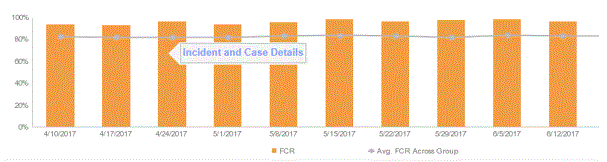
The Incident and Case Details for the respective Agent along with the selected time frame is displayed as follows:
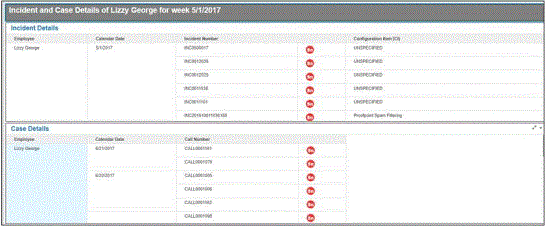
You can click the  icon beside the Incident Number and Call Number to view more specific details about the Incident and Call in ServiceNow.
The following metrics are used in the Agent Performance dashboard:
| Average Handle Time |
Average time in seconds it took agents to handle calls, including
talk time, hold time, and after call work. |
| RONA |
Number
of times calls are redirected to the same or different queue because
they were not answered in time.
|
| Average ACW Time |
Average time in seconds
taken by the agent to wrap-up after call tasks.
|
| Call Volume Per Day |
The number of calls queued to call system (ACD). |
| %Utilization |
The percentage of time agents are handling calls. |
| FCR |
Specifies the percentage of incidents that are resolved within
30 minutes from the time the incident was open. |
© 2021 Digital.ai Inc. All rights reserved.